
How to use the Total Battle Epic Stack Calculator
Find your army capacity and battle-report bonuses in Total Battle, enter them in Epic Calc and calculate your army stack.
On-screen instructions; no audio is needed. Download video
Use a battle report made with the captains, equipment and bonuses you want to calculate. All numbers below are examples. Enter your own values.
Read the number after the slash.
Choose your captains and open Start march. The three counters at the bottom show used / maximum. Copy the maximum into the matching calculator field.
The calculator displays Leadership, Dominance, Authority in that order. Match the names.
Set your highest unlocked G / S / M tiers. Leave Recommended G/S tiers and Recommended Monster tiers on for automatic selection. Use Some latest G/S Units are locked if necessary.
See the calculator fields
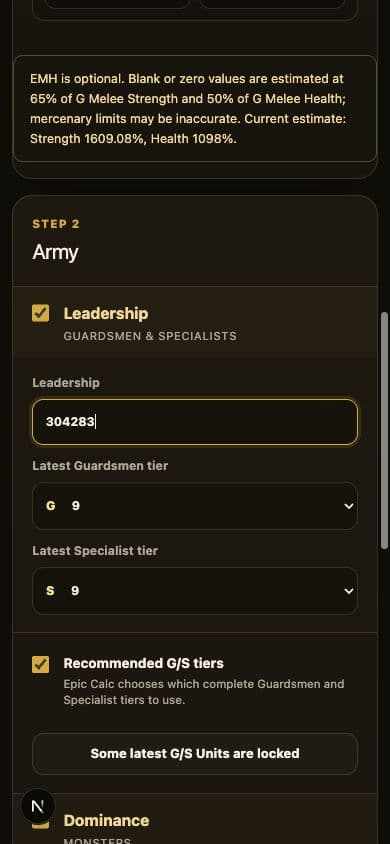
The calculation in this guide uses illustrative G9/S9/M9 unlocks. Choose your actual tiers.
Open the completed battle log.
Open Journal, choose a completed battle report and scroll down to Battle Info. Tap your unit portrait there, then scroll to Bonuses.
The unit must be opened inside the resulting battle log. Do not use its detail from the attack setup screen.
Tap a melee Guardsman unit you have unlocked and used in the battle. Its values go into G Melee. The recording shows Punisher I as an example; you do not need to have Punisher unlocked.
Skip the base numbers in Stats. You need the percentages in Bonuses.
Read the highlighted rows.
Health → G Melee Health
Strength → G Melee Strength
Epic bonus → its own field
Enter percentages without +, % or thousands separators. Do not add 100%. Do not add the Epic bonus to the individual Strength value.
See these values in the calculator
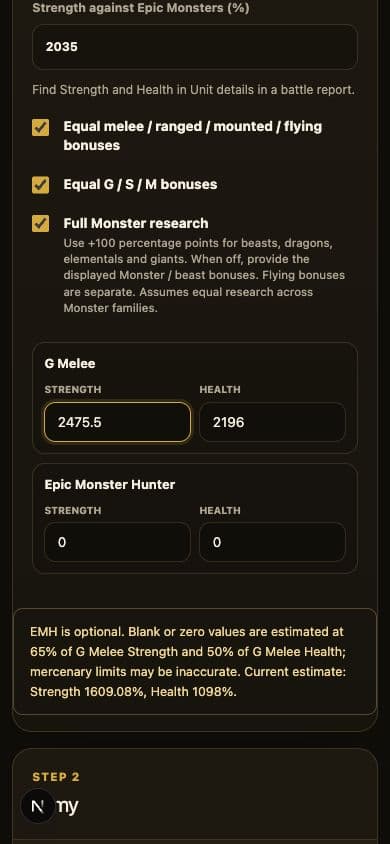
Decide which boxes to keep checked.
Check both Strength and Health in the same completed battle report. Equal means the relevant bonuses match, not that the units have the same base Stats. If you are unsure, turn off both Equal options and fill every row that appears.
Equal melee / ranged / mounted / flying bonuses
Keep checked: the bonuses match across combat classes, allowing separately for Monster-family research on beasts such as Griffins.
Uncheck: any combat class has a different Strength or Health bonus. Compare ordinary melee, ranged and mounted Guardsmen, and check a flying representative.
Then fill: G Ranged, G Mounted and the flying row shown (Corax, M Flying or S Flying, depending on your unlocks and whether Monsters are enabled). A beast row may also appear.
Example: G Melee Health 1287.5 and G Ranged Health 1338 → uncheck, even if their Strength is identical.
Equal G / S / M bonuses
Keep checked: Guardsmen, Specialists and Monsters have the same underlying category bonuses. Monster-family research is handled separately.
Uncheck: category bonuses differ. For example, G Melee Strength 2498.5 and S Melee Strength 2455 → uncheck.
Then fill: S Melee and, with Monsters enabled, the requested Monster row. At M3 this is M Ranged; later it is M Melee.
With full Monster research, a Monster can show +100 percentage points in both Strength and Health compared with an ordinary Guardsman and still satisfy this option. That research difference alone does not mean category bonuses differ.
Full Monster research
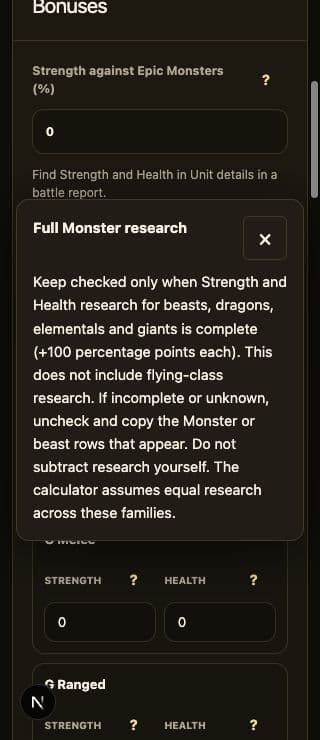
Keep checked: Strength and Health research for beasts, dragons, elementals and giants is complete (+100 percentage points each).
Uncheck: research is incomplete or you do not know. Copy the Monster or beast values requested by the form. Depending on your other settings, this can be M Melee, M Ranged, Royal Lion or Battle Griffin.
Enter the displayed percentages unchanged. Do not subtract research yourself. Flying-class research is separate; the calculator assumes equal research across Monster families.
In the main example, all three boxes are checked because these conditions apply to that profile. Do not copy the checkmarks without checking your own bonuses.
Army and tier checkboxes
- Leadership / Dominance / Authority: keep checked for categories you want to include and fill their maximum capacity. Uncheck a category to exclude it.
- Recommended G/S tiers / Recommended Monster tiers: leave checked for automatic selection. Uncheck only if you want to choose tiers yourself, then tick the tiers you want to use.
- Some latest G/S Units are locked: open this list if your highest tier is only partly unlocked. Keep usable units checked; uncheck those you cannot use.
- Round Monster counts to tens / Round Mercenary counts to tens: optional. Check for multiples of 10; leave unchecked to allow individual counts.
Tap the ? beside a calculator field or checkbox for its explanation. Help works on phones too.
See field help on a phone
Different bonuses? See a real G7/S7 example.
These are a separate profile. Turn off both Equal options: class Health values differ, and Specialist bonuses differ from Guardsmen.
This example can demonstrate manual research inputs with Monsters disabled. With Monsters enabled, the form may ask for M Flying instead. Full Monster research is independent of the Equal switches.
Which unit goes into which row?
Only fill in the rows the form asks for. They change with your tiers, enabled categories and switches. Copy measured percentages directly; do not subtract research yourself.
Using Mercenaries?
Fill in Epic Monster Hunter Strength and Health from its battle-log detail if available. Blank or zero fields use estimates: 65% of G Melee Strength and 50% of G Melee Health. Mercenary limits may be less accurate.
Tap Calculate best Stack.
Wait for the result to appear.
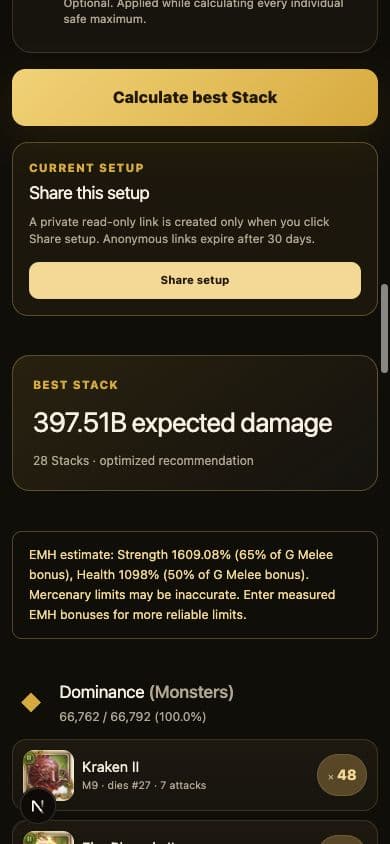
Your calculation is complete.